
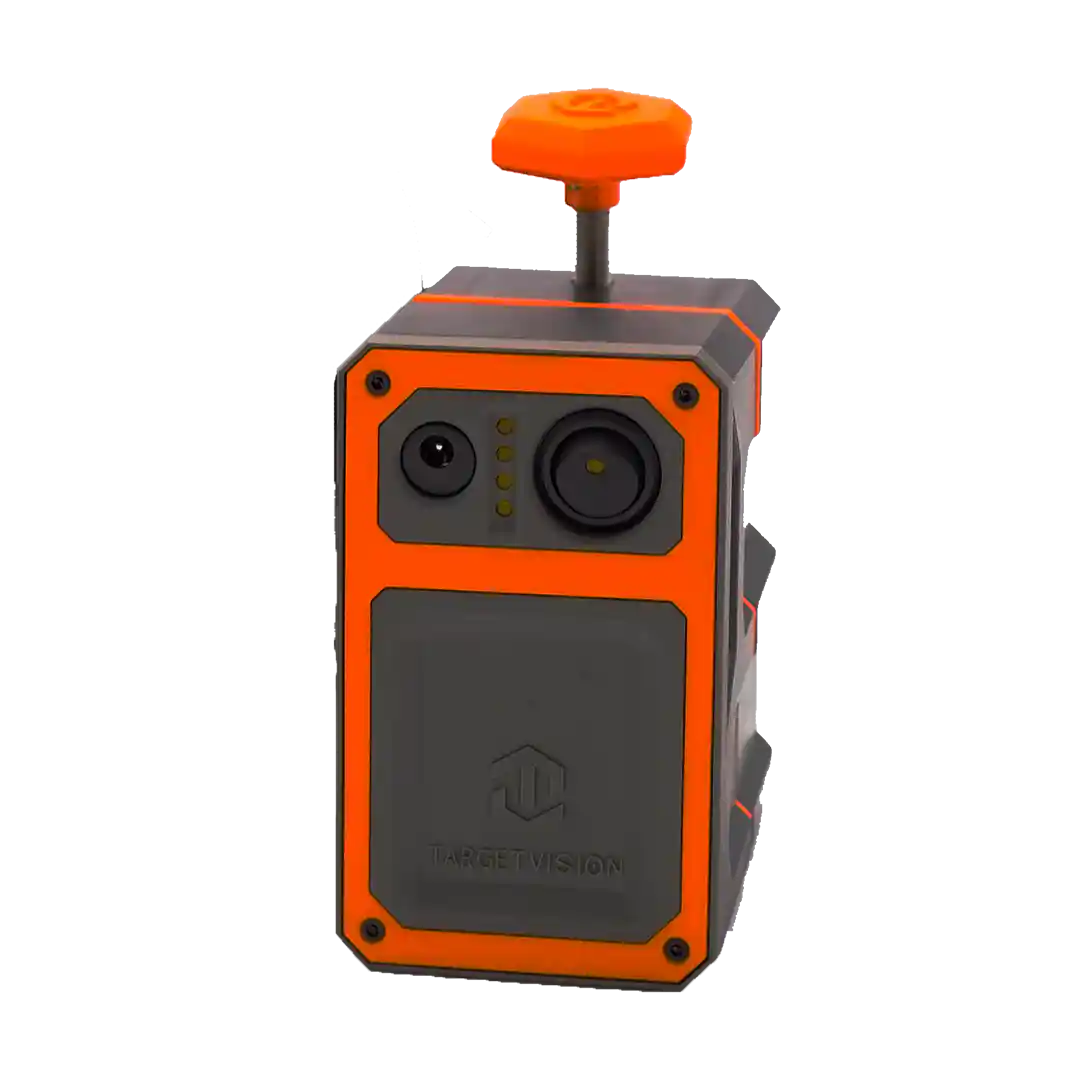
A Wi-Fi spotting scope camera can work without internet because “Wi-Fi” describes the local wireless connection between the camera and your phone or tablet. Internet access is not required for that direct link. In 2026, the Longshot Hawk creates its own local network and streams the spotting-scope image to the Longshot App without cell service, the range’s router, or an outside hotspot.
TL;DR
- The camera creates a private local wireless network.
- Your phone joins that network just as it would join a router.
- The network carries live video but does not provide internet access.
- Choose “stay connected” if the phone warns that the network has no internet.
- In 2026, download the app and updates before leaving home.
Local Wi-Fi vs internet
Wi-Fi is a way for nearby devices to communicate wirelessly. The internet is a larger network reached through a router, cellular connection, or another service. A spotting scope camera only needs the first function to send video across the bench or firing line.
The Hawk acts as the local connection point. Your phone or tablet joins the Hawk network. The Longshot App then receives the video feed and camera data directly. Nothing needs to travel to a remote server for basic viewing.
That is why a camera can say “Wi-Fi connected” while the phone also says “no internet.” Both messages can be correct.
What happens when you connect
- Turn on the Hawk and allow it to start.
- Open wireless settings on the phone or tablet.
- Select the Hawk network.
- Enter the camera password if asked.
- Choose to stay connected when the device warns there is no internet.
- Open the Longshot App.
- View and center the live feed.
Longshot’s current quick-start guide says to download the app before connecting, allow local-network and location permissions, and use “longshot” as the camera network password. Follow the current instructions included with your unit if they differ.
Why the phone may disconnect
Modern phones expect a wireless network to provide internet. When the Hawk network does not, the phone may try to switch back to cellular data or a remembered router. In 2026, watch for prompts such as:
- Stay connected?
- This network has no internet
- Switch to mobile data?
- Use cellular assist?
Choose the option that keeps the phone on the camera network. If needed, temporarily disable automatic network switching or cellular-assist features during the session.
What still works without internet
The Longshot product and app pages list:
- Live HD target viewing
- Pinch-to-zoom
- Shot markers
- Group measurement
- Zeroing adjustments
- Blinker Shot Locator
- Saved session photos
- Video recording
- Shot numbering
These functions use the local camera connection and the app. The Hawk listing also says multiple compatible devices can view the live image simultaneously.
What may require internet later
App downloads, operating-system updates, firmware downloads, cloud sharing, email, social posting, and some phone backup functions may need internet. Complete those tasks at home before a remote range day. Saved photos and videos can be shared after reconnecting to normal service.
[ryze-product] name: Hawk - Spotting Scope Camera price: 299.00 url: https://www.longshotcameras.com/products/hawk image: https://cdn.shopify.com/s/files/1/0371/6873/files/Hawk_1.webp?v=1788207705 note: Direct wireless spotting-scope camera for 36–58 mm eyepieces with 12+ hour listed runtime. [/ryze-product]

[ryze-product] name: Longshot Tablet price: 289.00 url: https://www.longshotcameras.com/products/longshot-tablet image: https://cdn.shopify.com/s/files/1/0371/6873/files/Tablet_327fee74-c789-4b02-8dc3-de83af5bde98.webp?v=1788209001 note: 11-inch Android tablet programmed with the Longshot App for a turn-key range display. [/ryze-product]

Setup before a remote trip
Download the app
Install the Longshot App while normal internet is available. Open it once and accept required permissions.
Charge both devices
The Hawk has a listed 12+ hour runtime under normal conditions. The phone or tablet also needs enough battery for the session, especially at high screen brightness.
Test airplane-mode behavior
At home, turn off the household router connection, join the Hawk network, and confirm the live feed. Some phones handle cellular data and local Wi-Fi differently. Learn the prompts before the range.
Save instructions offline
Keep a screenshot or downloaded copy of connection steps. A help page cannot load when there is no internet.
Control remembered networks
If the range office has Wi-Fi, the phone may prefer it. Forget or disable auto-join for that network during the camera session.
Troubleshooting in 2026
The phone says “connected without internet”
That is expected. Stay connected and open the Longshot App.
The app cannot find the camera
Confirm the phone is on the Hawk network, the camera is powered, local-network permission is allowed, and the phone did not switch networks.
The feed freezes
Move the phone closer, check battery, reduce physical obstructions, and confirm the mount did not shift. Reconnect to the Hawk network if the phone left it.
Cellular data is on but the feed is gone
Cellular data does not carry the local camera video. Rejoin the camera network.
Another person cannot connect
Confirm the second device is compatible, has the app and permissions, and joins the same Hawk network. Test one device at a time before adding viewers.
The image is blurry
Wireless connection is not the first focus control. Focus the spotting scope, center the Hawk over the eyepiece, and then use digital zoom only as needed.
Why this matters at real ranges
Many outdoor ranges have weak or no cell coverage. A camera that depended on an outside router would fail exactly where shooters need it most. The direct local connection keeps the target image available in those conditions. The same principle is explained in No Wi-Fi at the Range? Longshot Still Works.
Verdict
A Wi-Fi spotting scope camera does not need internet in 2026 when it creates its own local network. The Hawk sends video directly to a phone or tablet, and the Longshot App handles viewing, markers, measurement, photos, and recording. Prepare the app and permissions before the trip, stay connected when the phone warns about no internet, and keep normal online sharing for after the range session.
Watch how the direct connection works
Longshot’s official FAQ video answers the common setup questions around the camera’s private wireless connection and why range internet is not required.
Watch Longshot Camera FAQ — Your Questions Answered, then use the troubleshooting steps above if your device warns that the network has no internet.
FAQ
Does the Hawk need a hotspot?
No. It creates a direct local wireless connection.
Should I turn off cellular data?
Not always, but disabling automatic switching can help if the phone keeps leaving the camera network.
Why does my phone say there is no internet?
The Hawk network carries local video and is not an internet provider. The warning is normal.
Can I still save photos and video in 2026?
Yes. Longshot lists saved photos and video recording as app features.
Can several people watch the feed?
Longshot says multiple compatible devices can connect to the Hawk feed.
What should I download before the range?
Install the app, allow permissions, save the setup instructions, and install needed updates while internet is available.
Share:
How to Clean and Maintain a Target Camera Lens
Target Camera for Range Safety Officers | 2026