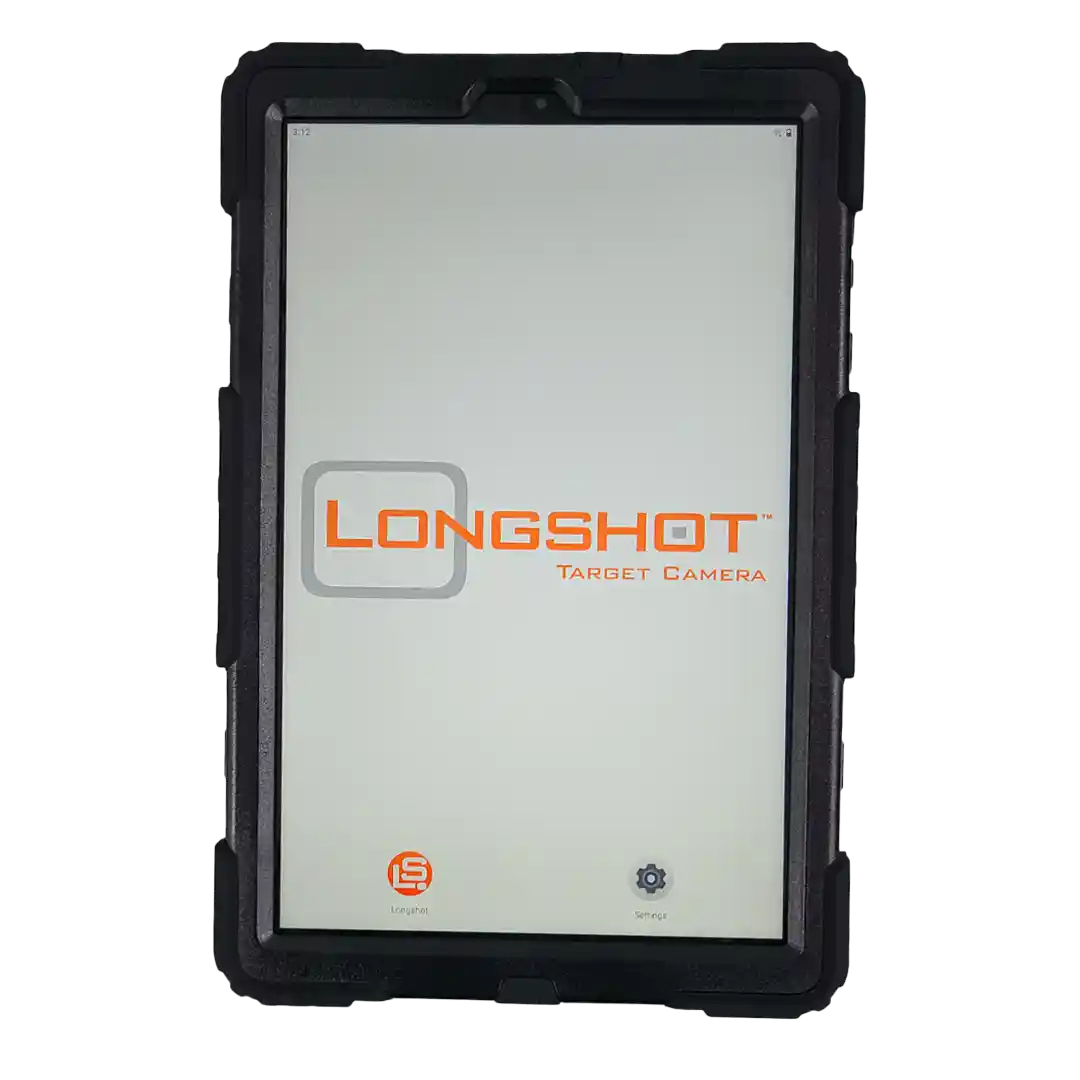
The Longshot app on Android turns your phone or tablet into the live screen for your target camera. This 2026 setup guide covers the practical order: charge the equipment, place the camera safely, connect Android to the Longshot wireless signal, and confirm the live target view before shooting.

- The Longshot app on Android connects to the camera's direct wireless signal, not range Wi-Fi.
- Set up the target camera before connecting the Android phone or tablet.
- Confirm the live target view before firing your first shot.
- Keep the camera offset from the bullet path and the Android screen at your shooting position.
Why the connection order matters
The Longshot app is the viewing and session tool for Longshot target cameras. It gives you a live target view on a compatible Android phone or tablet so you can see impacts without walking downrange or relying on cellular service.
The usual setup mistake is opening the app first and searching for a connection before the camera is powered and positioned. In 2026, make the camera system ready first. Then connect the Android device to the camera's direct wireless network and open the Longshot app.
Longshot target cameras do not require internet service, a hotspot, or range Wi-Fi to operate. Your Android device connects directly to the camera system.
What you need
- A charged Longshot target camera system.
- A compatible Android phone or tablet with the Longshot app installed.
- The camera's charger, case, and tripod or another stable mounting solution.
- A safe camera position near the target.
- Enough device battery and screen brightness for the session.
For a Marksman or LR-3 system, Longshot's current placement guidance is about 10 to 15 feet in front of and slightly offset from the target. The camera should have a clear view of the target while remaining outside the bullet path.
Step 1: Charge the camera and Android device
Start with enough battery in both the camera system and your Android phone or tablet. The Longshot Marksman and LR-3 each state up to 9 hours of battery life on a single charge.
Your Android screen is part of the system. A target camera can be fully charged and still be useless if the phone or tablet dies halfway through a range day.
Step 2: Install the Longshot app before arriving
Install the Longshot app from Google Play while you still have normal internet access. Open it once so you know the Android device can run it and the screen is usable.
Longshot states that its app works with most modern iOS and Android phones and tablets. Test an older device at home rather than troubleshooting it at the firing line.
Step 3: Position the target camera safely
Set the camera downrange beside the target, not beside the rifle. For the Marksman and LR-3, use the current Longshot guidance: approximately 10 to 15 feet in front of and offset slightly to the side of the target.
The target needs to fill enough of the view to make impacts readable. Adjust the tripod and camera angle before connecting the Android device. Keep the camera outside the bullet path and follow range rules.
Step 4: Turn on the Longshot camera system
Power on the camera system and give it time to establish its direct wireless signal. If your system includes a receiver, set up the receiver before looking for the connection on Android.
Do not look for public Wi-Fi, your range's guest network, or your phone carrier connection. The Longshot app on Android needs the camera system's direct wireless connection.
Step 5: Connect Android to the camera network
Open Android Wi-Fi settings and select the network broadcast by the Longshot camera system. Your phone or tablet may warn that the connection has no internet. That is normal because the camera connection is for the live target feed, not web browsing.
Stay connected to the camera network even if Android suggests switching to a network with internet access. If your device automatically abandons the camera signal, turn off that behavior during the range session.
Step 6: Open the Longshot app and check the view
Open the Longshot app after Android is connected to the camera system. The app should display the live target view. Center the target and adjust screen brightness until the image is useful from your shooting position.
Longshot states that the app can support tracking and numbering shots, saving photos, reviewing sessions, and recording video and stills, depending on the system and workflow.
Step 7: Confirm the view before the first shot
Confirm the target is in frame, the live image is stable, and the equipment is positioned safely. One check is faster than losing the first string because the camera was pointed too high, low, or wide.
In 2026, the fastest range sessions are the ones where the camera, Android screen, and target are working before the first serious group starts.
Troubleshooting
The app has no live target image
Confirm Android is connected to the Longshot camera network, not normal Wi-Fi or mobile data. Then verify that the camera and receiver are powered on.
Android says the Wi-Fi has no internet
That is expected. Longshot target cameras use a direct wireless connection for the live target feed. Keep Android connected.
The target is not centered
Adjust the physical camera and tripod downrange. A phone screen cannot correct a camera that is pointed at the wrong part of the target.
The screen is hard to read in sunlight
Increase Android screen brightness and place the device in shade where practical. A stable tablet position makes the live view easier to use from the firing line.
The connection drops
Check power, then make sure Android did not switch to another Wi-Fi network. Restart the camera system and reconnect to the direct Longshot signal if needed.
Watch the Android app workflow
The official Longshot app walkthrough shows the connection flow and the target-view tools you will use after the Android device joins the camera network.
Watch Longshot Target Cameras Complete App Walkthrough, then return to the checklist above for your first range setup.
FAQ
Does the Longshot app on Android need cell service?
No. The Longshot app on Android connects to the target camera system's direct wireless signal, so cell service and range Wi-Fi are not required.
Why does Android say the Longshot camera network has no internet?
The Longshot camera network is for the live target feed, not web access. Keep Android connected to that network while using the Longshot app.
Where should I place a Longshot Marksman or LR-3 camera?
Longshot recommends approximately 10 to 15 feet in front of and offset slightly to the side of the target. Keep the camera outside the bullet path.
Can I use a tablet with the Longshot app?
Yes. Longshot states that its app works with most modern iOS and Android phones and tablets.
Why is the Longshot app not showing a live image?
First confirm that the camera system is powered on and Android is connected to the camera's direct wireless network. Then reopen the Longshot app.
What can the Longshot app do besides show video?
Longshot states that the app can support tracking and numbering shots, saving photos, reviewing sessions, and recording video and stills, depending on the system and workflow.
One last thing
Treat the Android device as part of your shooting setup, not an accessory. If the screen is charged, bright enough to read, and connected before the first shot, the Longshot app becomes the fastest way to confirm impacts and keep the session moving.
Share:
Digital Spotting Scope With Screen: 2026 Guide
Mini Tripod Target Camera Setup: 2026 Bench Guide